
Overview | Install Guide | Privacy | Verification
TidyStack V1
What TidyStack does
TidyStack runs on your Windows PC. Launch it, and it asks Claude to suggest where each loose file in your Downloads folder should go. The plan arrives on Telegram. You approve, refine, or reject from your phone, files move on your machine.
TidyStack never deletes anything. Files marked for removal go to a ‘To Delete’ folder for you to handle manually.
The scope of V1:
Windows only.
Looks at loose files at the top level of your Downloads folder. Folders inside Downloads are left alone, TidyStack does not open them, scan them, or touch their contents.
Routes files into your chosen destination folders, up to two levels deep (you set these during a 2-minute setup).
Never moves a file without your approval.
If a destination folder already has a file with the same name, TidyStack skips that move and tells you in the summary, your file stays in Downloads, untouched.
TidyStack V1 Installation Guide
Section 1 - Before you start
Have these ready:
A Windows 11 PC.
Telegram installed on your phone.
An Anthropic API key. Don't have one? Expand Section 2.
A Telegram bot token. Don't have one? Expand Section 3.
About $5 of Anthropic API credit. A typical scan costs $0.01 to $0.05.
10 minutes.
If you already have a key and a bot token, skip ahead to Section 4
-
TidyStack uses Claude (Anthropic's AI) to read your file list and suggest where each file should go. You'll need your own API key so that usage is billed to you, not to me.
1. Create an Anthropic account. Go to console.anthropic.com and sign up. Use the email address you want billing receipts sent to.
2. Add credit. Click Plans & Billing in the left sidebar, then Add credit. $5 is plenty to get started. A typical Downloads scan costs $0.01 to $0.05, so $5 covers around 100 to 500 scans. You can top up later.
3. Create your key. Click API Keys in the sidebar, then Create Key. Name it something you'll recognise (TidyStack works). Copy the key immediately. Anthropic only shows it once. If you lose it, you'll need to create a new one.
4. Save it somewhere safe. A password manager is ideal. The key starts with sk-ant- followed by a long string. You'll paste it into TidyStack's setup wizard in Section 4. Don't put it in the config file by hand.
Treat this key like a password.
Anyone who has it can spend your Anthropic credit. If it ever leaks, revoke it from the same API Keys page and create a new one.
Prefer a video walkthrough? Anthropic's setup is well covered in this 3-minute tutorial.
-
Telegram is how TidyStack reaches you. The plan arrives on your phone, you tap approve or refine, and the moves happen on your PC. Your phone is the remote control.
1. Open BotFather. In Telegram, search for @BotFather and start a chat. BotFather is Telegram's official bot for creating other bots.
2. Create the bot. Send /newbot. BotFather asks for a display name (anything you like — "TidyStack" works) and then a username that must end in bot (e.g. myname_tidystack_bot). The username has to be unique across all of Telegram, so add your name or initials if needed.
3. Save the token. BotFather replies with a long token that looks like 8123456789:AAH.... Save it the same way you saved your Anthropic key, a password manager is ideal. You'll paste it into TidyStack's setup wizard in the next step.
Treat the token like a password. Anyone with it can send messages from your bot. If it leaks, return to BotFather and send /revoke to issue a new one.
Section 4 - Download, verify, and run
Download TidyStack.
Download TidyStack.exe (about 25 MB). Save it somewhere you'll remember. Your Desktop or a new folder in Documents, both work.
Optional verification:
The file you download should match this SHA256 hash:
4B1722694B2B47C50F8769CA65F858206341F474A12A15F0CEA302B1B6536916
If you want help verifying the file matches what I shipped, see the verification note.
Double-click to run.
Windows will likely show a blue SmartScreen warning that says "Windows protected your PC." This is expected. The warning appears because TidyStack is unsigned. I haven't bought a code signing certificate yet.
The warning means Windows doesn't recognize the publisher; it does not mean the file is unsafe.
If this happens: Click ‘More info’ then run through the installation wizard!
Curious about what TidyStack actually sends and where? See the privacy note
Section 5 - First-run wizard
The installation wizard runs once. It asks a few questions, gathers some information, saves it to a config file next to the .exe, and you're done.
Total time: about 2 minutes.
Step 1. Your Downloads folder. The wizard suggests C:\\Users\\YourName\\Downloads. Press Enter to accept or paste a different path. This is the only folder TidyStack ever scans.
Step 2. Anthropic API key. Paste your sk-ant-... key. The wizard validates it with Anthropic before continuing — if the key is wrong, you'll see a clear message and a chance to paste it again.
Step 3. Telegram bot token. Paste your 8123456789:AAH... token. Same validation: if it's wrong, you'll know immediately.
Step 4. Your Telegram chat ID. The wizard pauses and asks you to send any message to your bot from your phone. It detects the message and reads your chat ID automatically — no copying numbers by hand.
Step 5. Where TidyStack is allowed to move files. Pick existing folders for Documents, Pictures, and so on. TidyStack will only move files into folders you list here. If a file doesn't fit, it goes to the Review folder for you to handle manually.
Step 6. Your first scan. The wizard saves your config and runs your 1st scan. See the Next Section for more info about scans. From now on, double-clicking tidystack.exe runs a scan straight away — no setup, no questions.
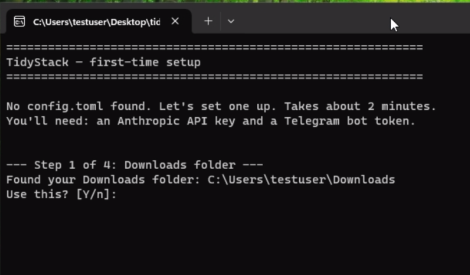
Wizard welcome screen in the console window
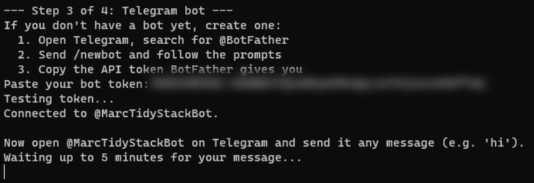
Step 4: wizard waiting for Telegram message
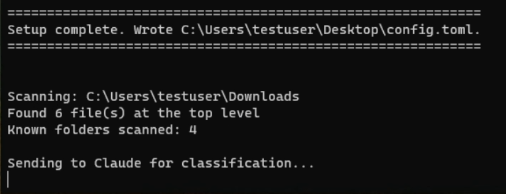
Installation completed. Starting the 1st scan
6. TidyStack at work: The scan
To run a scan.
Double-click `tidystack.exe`. The console window opens, scans the top level of your Downloads folder, and within a few seconds your Telegram bot sends you the action plan.
The plan groups your files into four buckets:
Move: files heading to one of the destination folders you picked during setup.
Review: files Claude wasn't sure about. They go to a `Review/` folder inside Downloads so you can decide later.
To Delete: files that look like clear junk — installers you've already used, duplicate downloads, expired files. They go to a `To Delete/` folder.
Keep: nothing happens
Nothing is ever actually deleted. You remove these manually when you're ready.
Your options.
In Telegram tap Approve to run the plan as-is,
Refine to send Claude a short instruction (e.g "keep the PDFs in Downloads," "move screenshots to Pictures instead"). When you're happy, tap Approve and TidyStack moves the files.
Cancel and nothing happens
A summary message confirms what happened.
Same name.
If a destination folder already has a file with the same name, TidyStack skips that one and lists it in the summary. Your file stays in Downloads, untouched.
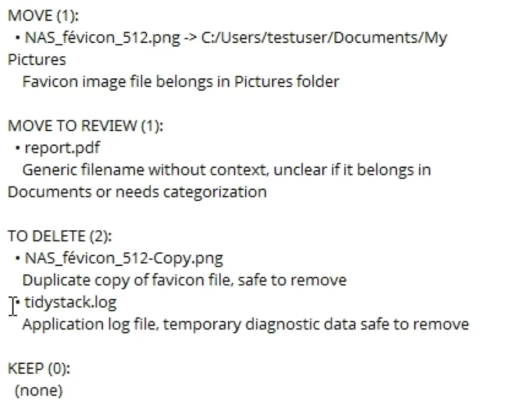
Tidystack proposing 4 actions for the files in Download

The three options available to the user in Telegram.
7. Troubleshooting, uninstall, support
Troubleshooting.
TidyStack catches most errors and explains them on screen in plain English. Three to know about:
Wrong API key. The wizard tells you immediately and lets you paste it again. If you see this after setup, your key was probably revoked — generate a new one in the Anthropic console.
No internet. Scans need to reach Anthropic and Telegram. If either is unreachable, you'll see a clear message. Reconnect and run again. -
Wrong Telegram token. Same as the API key — the wizard catches it during setup. If your token changes later, delete the config file next to `tidystack.exe` and run the wizard again from a fresh start.
Anything else surfaces with a friendly message in the console window. If a real failure happens, a `tidystack.log` file is saved next to the exe with the technical details.
Uninstall.
Delete the folder containing `tidystack.exe`. That's it. No registry entries, no scheduled tasks, no leftover services. Your `Review/` and `To Delete/` folders inside Downloads stay where they are; remove them manually if you want.
Support.
Email me with the contents of `tidystack.log` if you have one. I aim to respond within two business days.